
Add an app
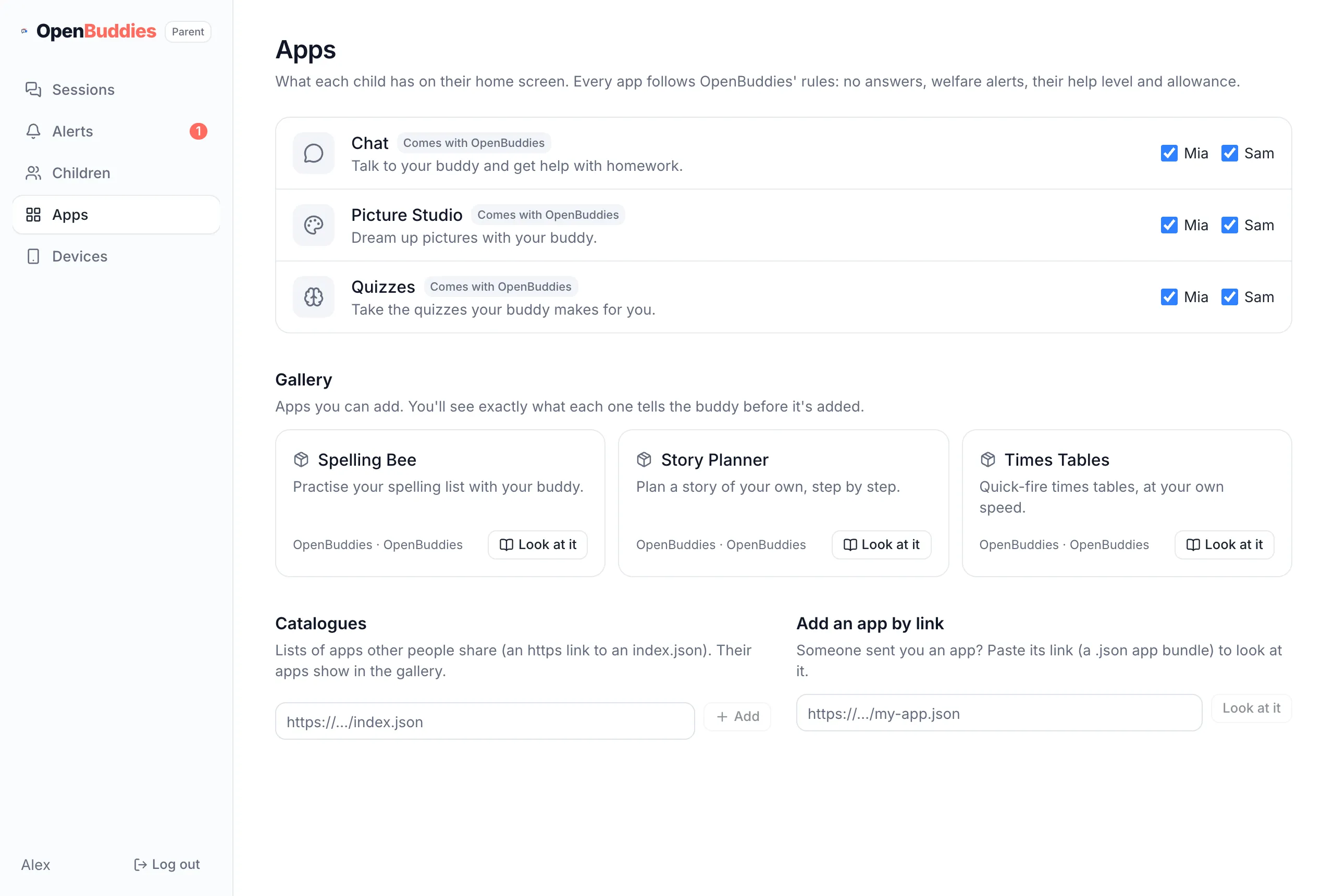
Homework help, Picture Studio and Quizzes come built in and are on for every child. Apps you add start switched off, so nothing reaches a child until you choose.
Whichever way you add one, OpenBuddies shows you the whole app first (what it uses, and every word of its instructions) and asks before adding it. The copy installed is exactly the one you read.
On your parent page
Section titled “On your parent page”Open Apps to see every app and tick which children get it. Below them is the gallery: tap Look at it to read an app before adding it. You can also add a catalogue, or an app someone sent you a link to.
Other ways to add an app
Section titled “Other ways to add an app”From the gallery
Section titled “From the gallery”See what’s there, then add one by its id:
openbuddies apps galleryopenbuddies apps add spelling-beeThe gallery includes Spelling Bee, Times Tables and Story Planner.
From a link
Section titled “From a link”Someone may share an app as a single .json file at an https:// link:
openbuddies apps add https://example.com/times-tables.jsonOr on your parent page: Apps → Add an app by link.
From a catalogue
Section titled “From a catalogue”A catalogue is a list of apps someone keeps, like a teacher’s class apps. Add its link on your parent page under Apps → Catalogues, and its apps appear in your gallery.
Turn it on for a child
Section titled “Turn it on for a child”openbuddies apps on <child> spelling-beeopenbuddies apps off <child> spelling-beeOr switch it on and off under Apps on your parent page. To remove an app completely, run
openbuddies apps remove <app>.