
Read your child's chats
You can read every message your child sends and every reply their buddy gives.
See how a child is getting on
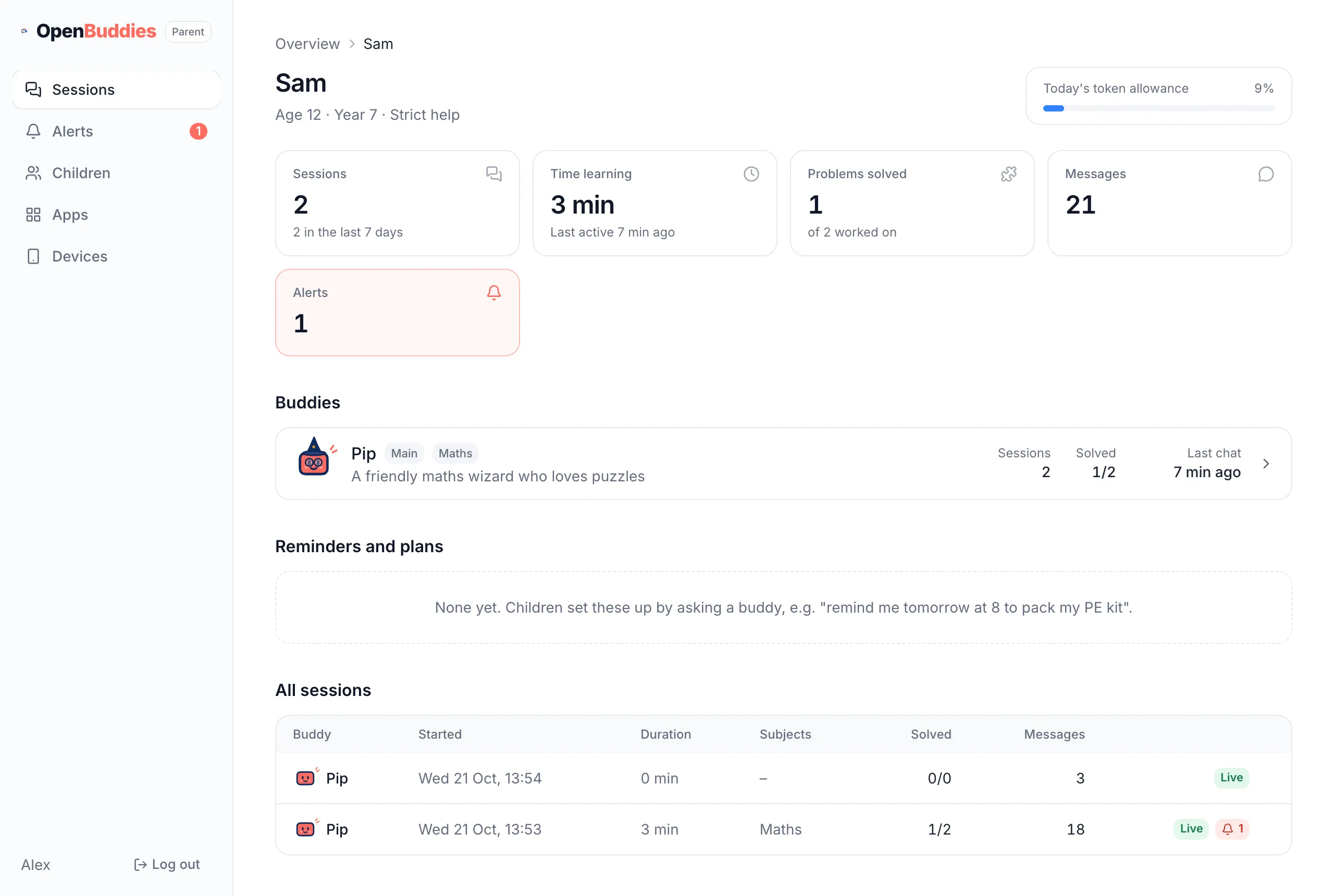
Section titled “See how a child is getting on”On your parent page, open Sessions and choose a child. Their page shows:
- how much of today’s AI allowance they’ve used
- their sessions, time learning, problems solved and messages
- any alerts
- their buddies, and what each one is best at
- the reminders and plans they’ve set up with their buddies
- all their sessions, newest first. Live means the chat is still going.
Read a chat
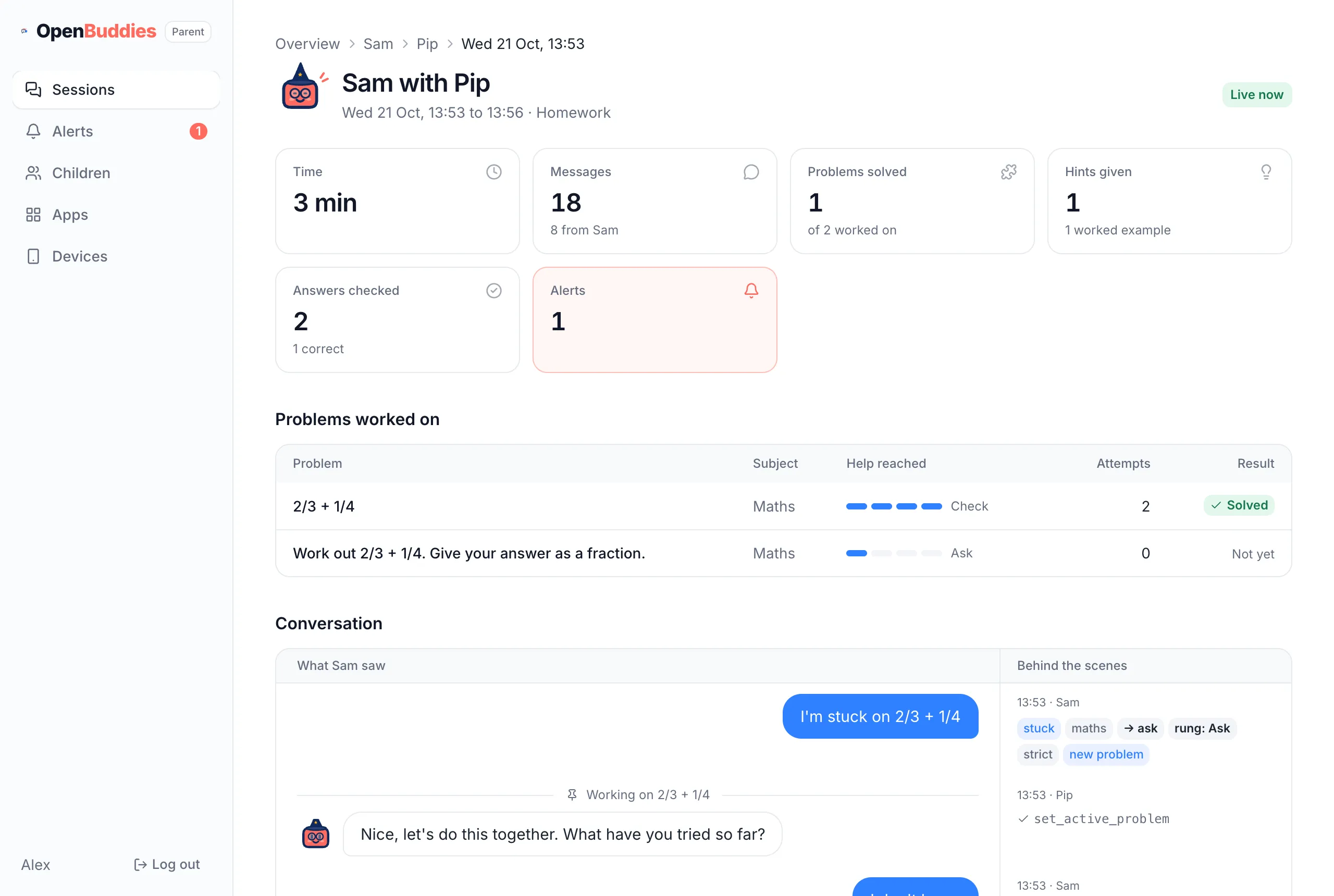
Section titled “Read a chat”Open a session to read it. At the top is a summary: how long it lasted, problems solved, hints given and answers checked.
Problems worked on shows each problem, and how far up the help ladder the buddy went before your child got it: Ask, Nudge, Worked example or Check. See Help levels and the hint ladder.
See why the buddy said what it said
Section titled “See why the buddy said what it said”The conversation has two columns:
- What your child saw: the chat, exactly as it appeared on their screen.
- Behind the scenes: for each message, what OpenBuddies made of it (for example “stuck”, the subject and the help level), and what the buddy did next, like giving a hint or checking an answer.
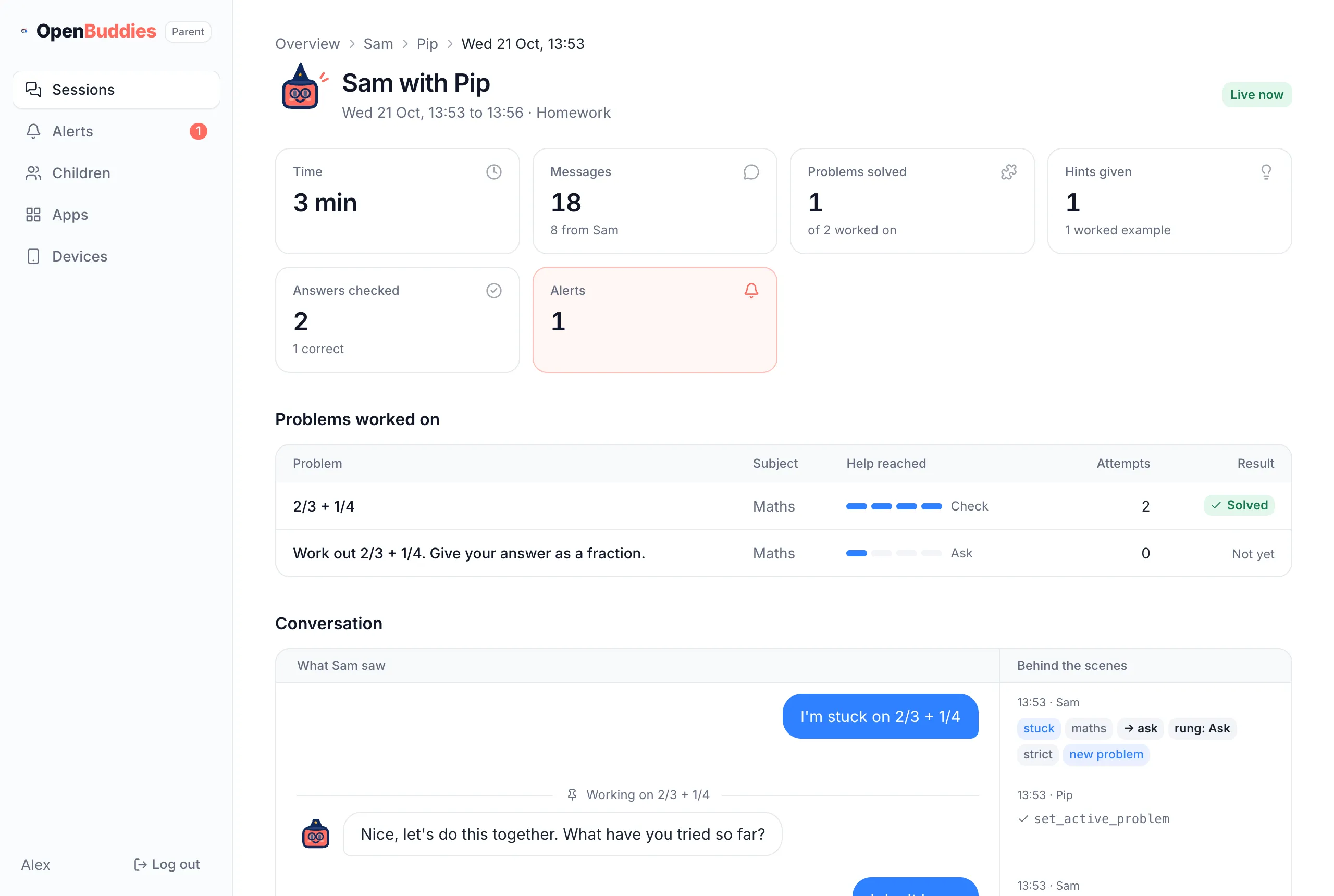
Behind the scenes also shows any alert, next to the message that raised it, and any reply the buddy drafted that gave too much away and was blocked before your child saw it.