
Find your way around your parent page
Your parent page is where you see what your children have been doing with their buddies, and set the rules.
Open it
Section titled “Open it”openbuddies start opens it for you. On the home computer, you can also go to
localhost:4747/parent (or the port you chose during setup). To open it from your phone
when you’re out, see Use it away from home.
Enter your parent PIN to unlock it.
What’s on it
Section titled “What’s on it”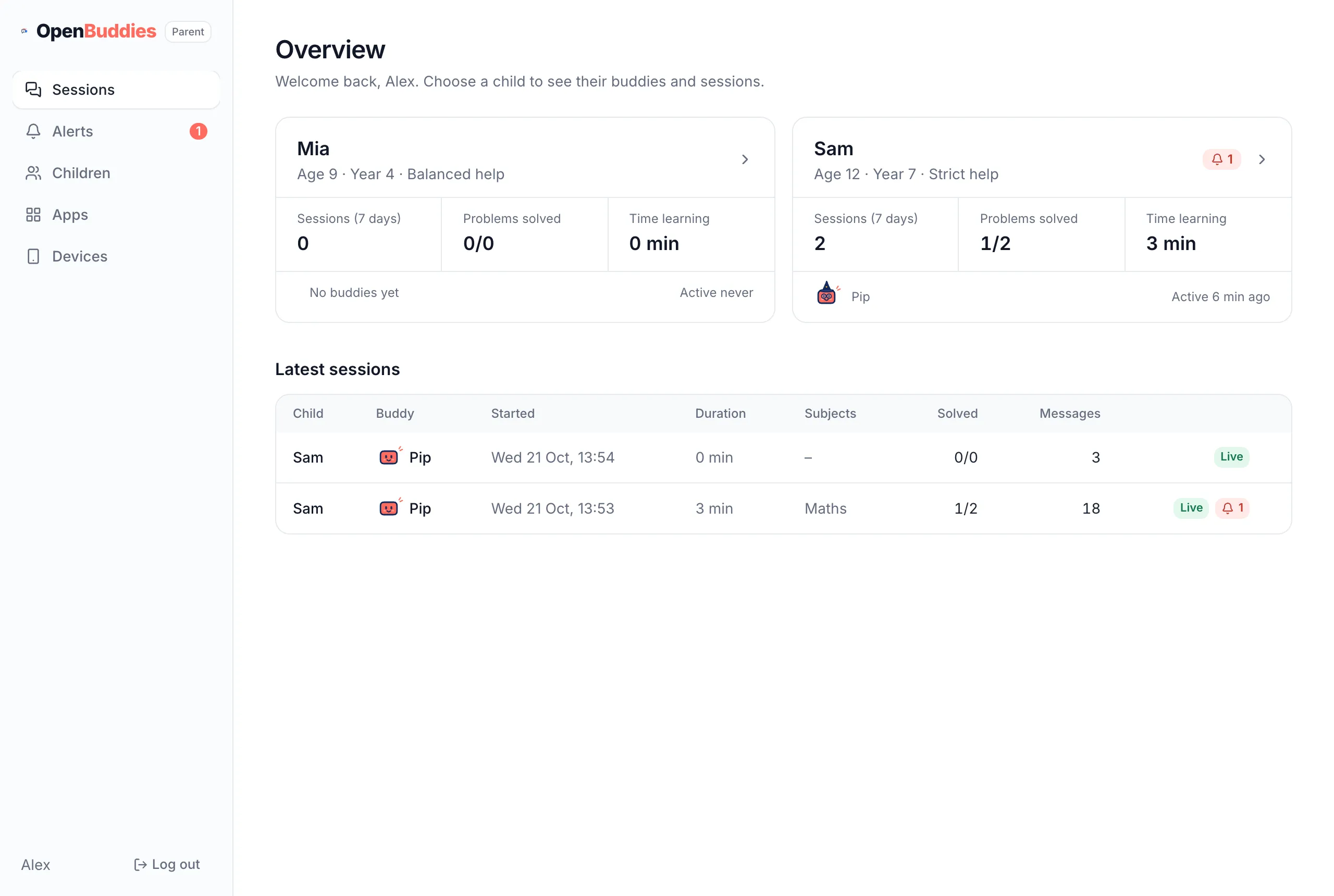
- Sessions is where you start. Each child has a card showing their sessions this week, problems solved and time spent learning, with their latest chats underneath. Open a child or a chat to read it: Read your child’s chats.
- Alerts lists anything worrying a child has said, with a count while any are unread: Check alerts.
- Children is where you set each child’s rules: their help level, their daily AI allowance, what they can look up online, and their subjects. You can add a child here too.
- Apps shows the apps on each child’s home screen, and the gallery of apps you can add: Add an app.
- Devices shows each child’s paired phones and tablets. Pair a new one, or revoke one that’s lost: Pair a phone or tablet.
When you’re done, Log out is at the bottom of the menu.